


AP/IB testing
As we approach AP/IB testing, the Information Technology Department needs your support to ensure all student devices are ready.
The Bluebook software comes with a warning: “Avoid Test Day Delays, Bluebook auto-updates when students open it, too many simultaneous updates by students could overwhelm your network and delay testing. Ask students to open Bluebook on their own before test day or any group readiness activities. They don’t need to sign in. “
Last year SM experiences delays as Students did not have the updated version and some rooms experienced delays.
To minimize disruptions and ensure a smooth testing experience, please assist us by completing the following steps with your students during class time—either at the beginning or end of each period leading up to AP/IB testing, we want to assure current version.
The process helps the student device check for the latest software updates and changes as it reconnects to the server with each start up.
Action Steps for Classrooms:
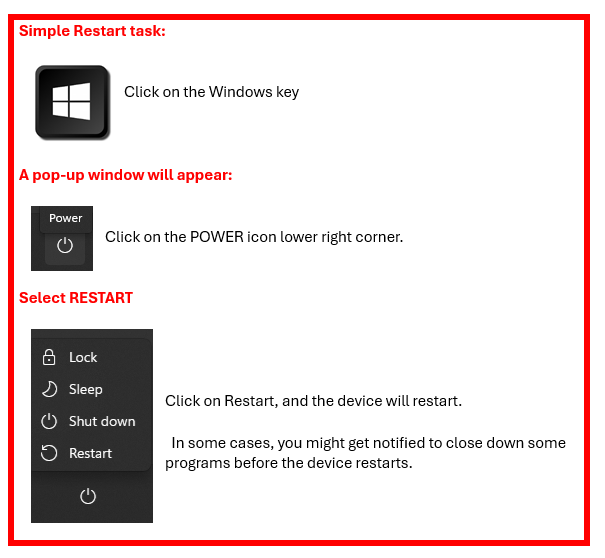
- IMPORTANT STEP: Restart Student Devices
Have all students restart their school-issued laptops. Confirm that each device powers down and reboots properly. You can do this daily as it will not hurt anything for the devices to restart and it help with any underlying issues.
- Verify Desktop and Software
After restarting, please check that:- The “Humility” desktop background appears

-
- Have Students verify the Bluebook application Icon installed and visible on their desktop

❗ If either the background or Bluebook software is missing:
- Ask the student to restart the device again, as it might take several restarts to get the software installed.
- If the issue persists, direct the student to the Tech Center for assistance
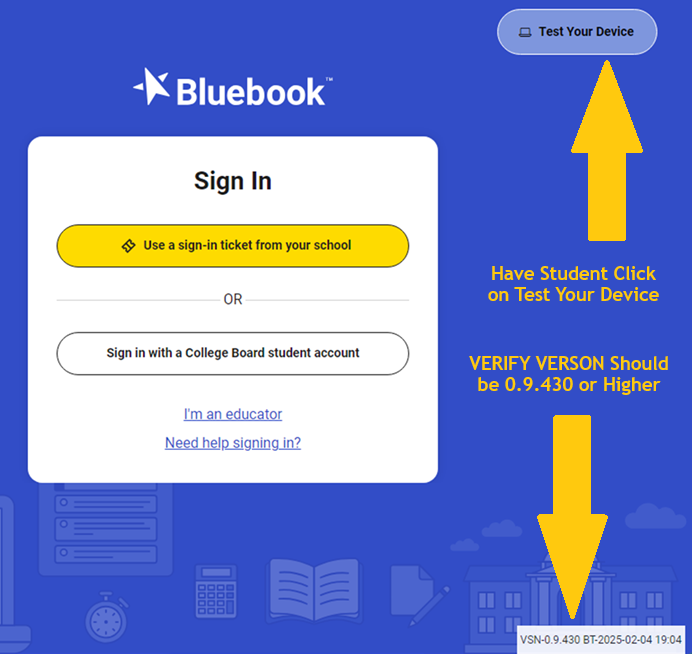
- Verify Bluebook software is installed and working with the current version: (.0.9.605 or Greater)
Ask the student in your class to open Bluebook using the Icon on their desktop.
Most students will see the Sign In page without issues.
Students MIGHT get a pop-up screen advising them to quit programs they have running.
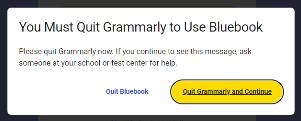
Bluebook requires that no other applications be running on the device while the exam is being taken, not even in the background. This includes things like writing assistants (like Grammarly), messaging apps, VPNs, and any software that opens on startup. Bluebook will detect and lock down the device if any other apps are running.
Key points to remember:
· No other apps can be open:
Bluebook will not allow you to test if any other applications are running, even if they’re in the background.
· Bluebook will lock the device:
If Bluebook detects other apps, it will lock the device, preventing student from taking the exam.
· Close everything:
Before starting the exam, students need to ensure they have closed all other applications and processes that might run on startup.
4. Test Your Device
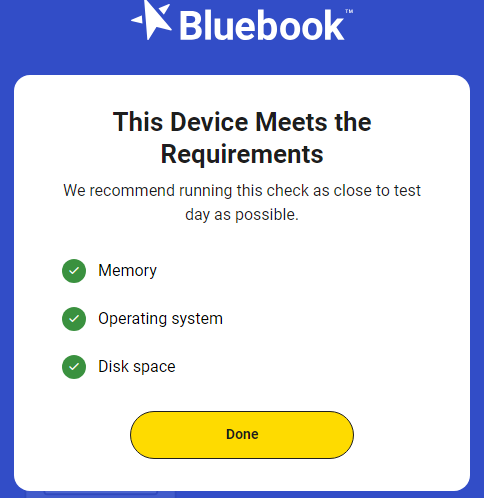
o When the student clicks on “Test your Device” They should see three (3) green checks on the screen.
5. Background IT Monitoring
Our IT staff will be monitoring devices remotely to verify software compliance. If issues are found, we may reach out to students via Microsoft Teams and ask them to report to the Tech Center.
6. Fully Charged Devices on Test Day
Please remind students to fully charge their laptops the night before testing and to bring only their school-issued devices on campus. Personal devices (e.g., iMacs, iPads, Smartphones) are not permitted in classrooms.
FROM AP Exams: Testing devices must hold a charge for at least 4 hours.
Thank you for your attention and support!
Best regards,
The Information Technology Department

